SPECIFICATIONS
Attention before installation: The car firmware version must be upgraded to 70 or above, and there is a download link in the details page description
Brand Name: MLINKIT
Choice: yes
High-concerned chemical: none
Origin: Mainland China
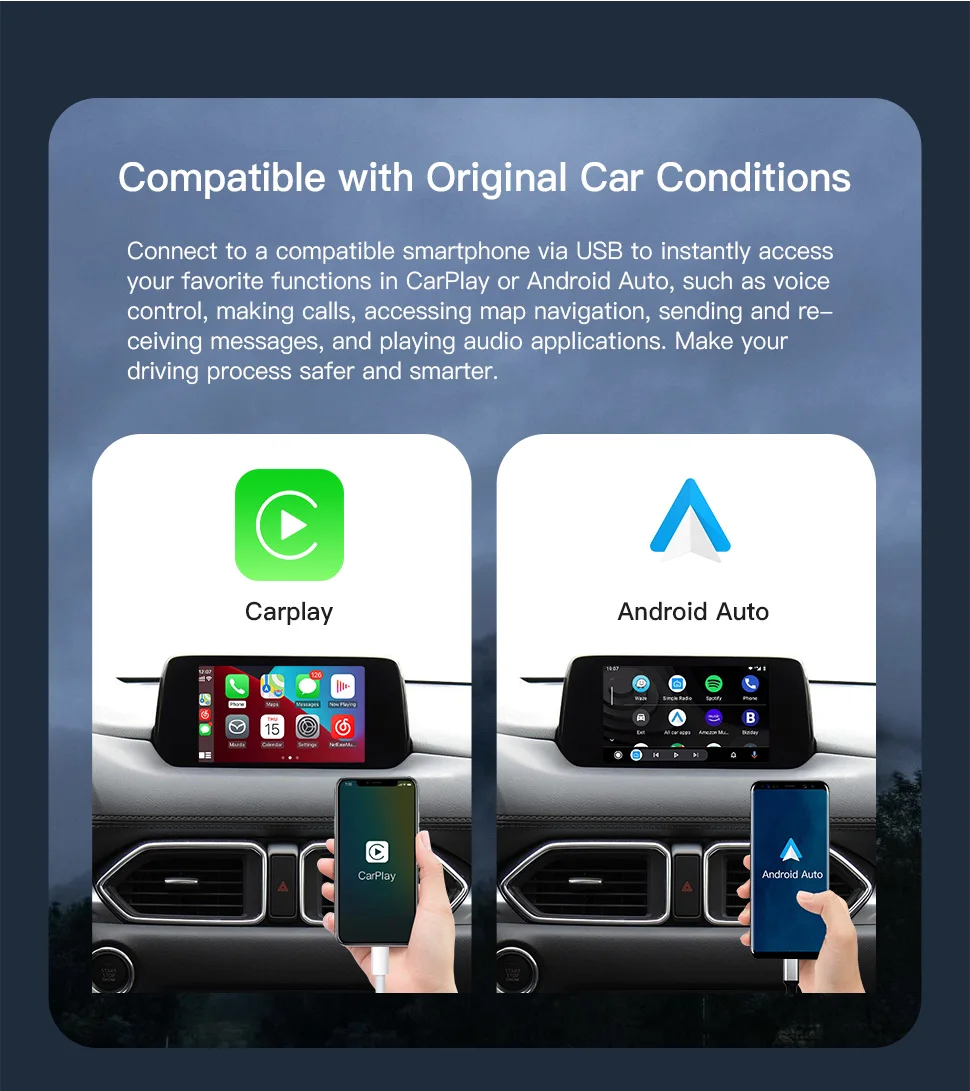
P2 version description: Wired Caplay Android auto
P3 version description: Wireless CarPlay,If you cannot 100% confirm that your Android phone can use wireless Android Auto, please do not order the wireless version
Warning:
If you cannot 100% confirm that your Android phone can use wireless Android Auto, please do not order the wireless version
Mazda's official extended power supply for the new HUB has resulted in the USB HUB not immediately disconnecting power after a brief shutdown, and the built-in wireless CarPlay device will disconnect data to maintain power supply. The brief shutdown may cause the CarPlay to fail to connect automatically, requiring multiple restarts. (Connecting after 15 minutes of shutdown does not affect automatic connection)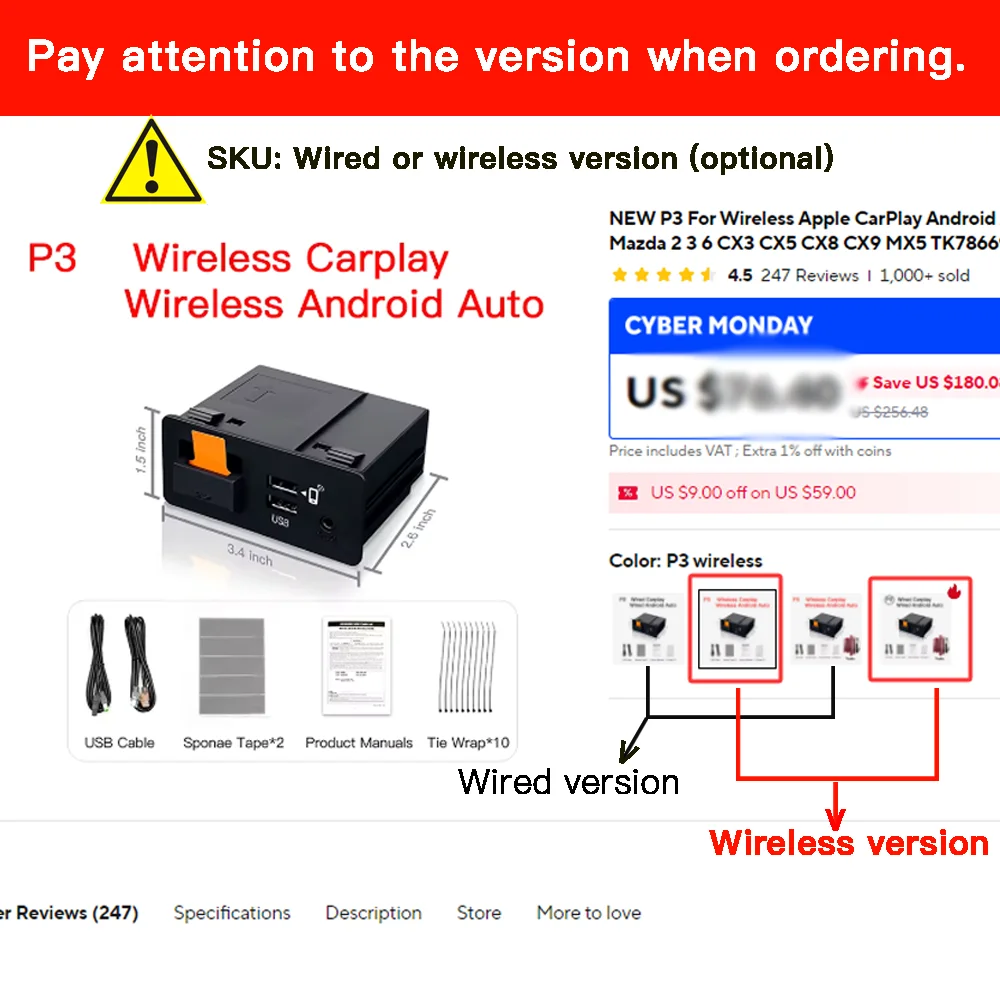
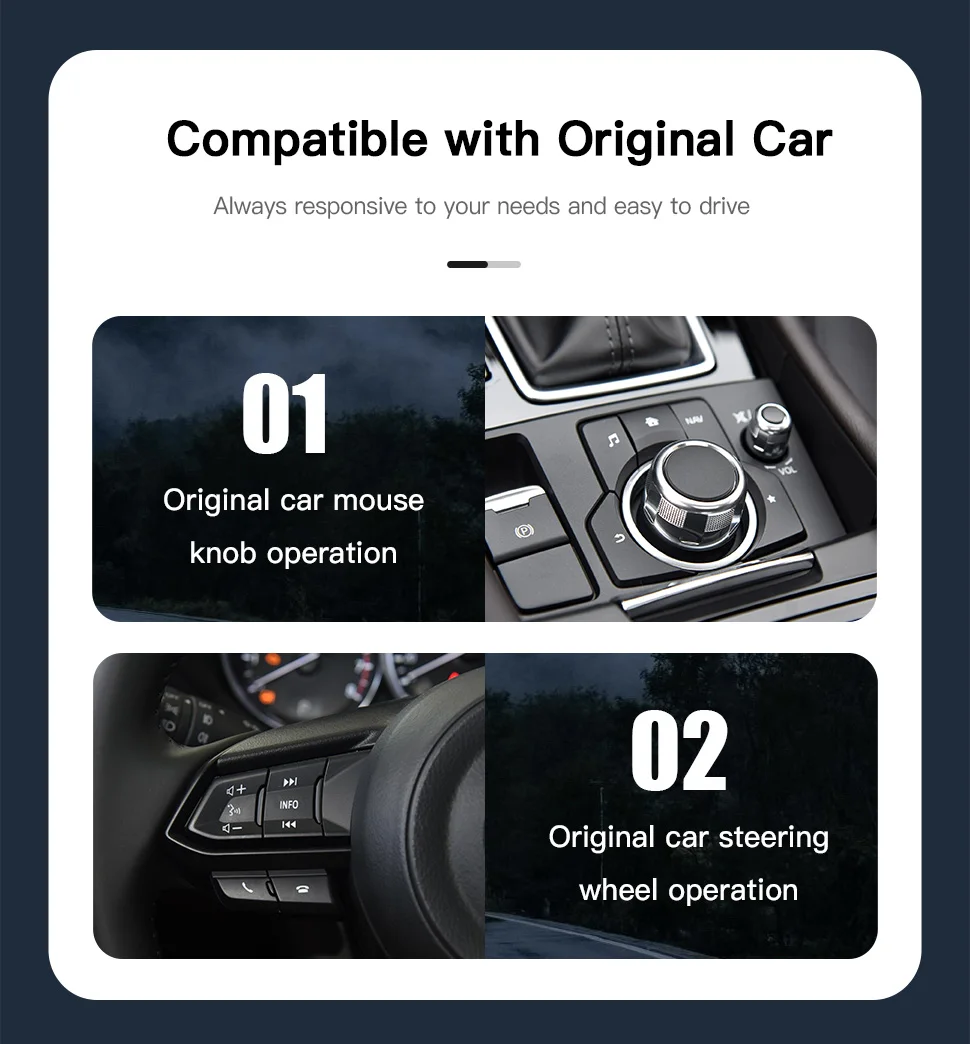
Please note: All Mazda vehicles do not support the Android Auto screen touch function, as this feature is restricted by Mazda. It can only be controlled through the rotary knob,
The CarPlay feature prohibits screen touch control while the car is in motion, allowing only control through the rotary knob.
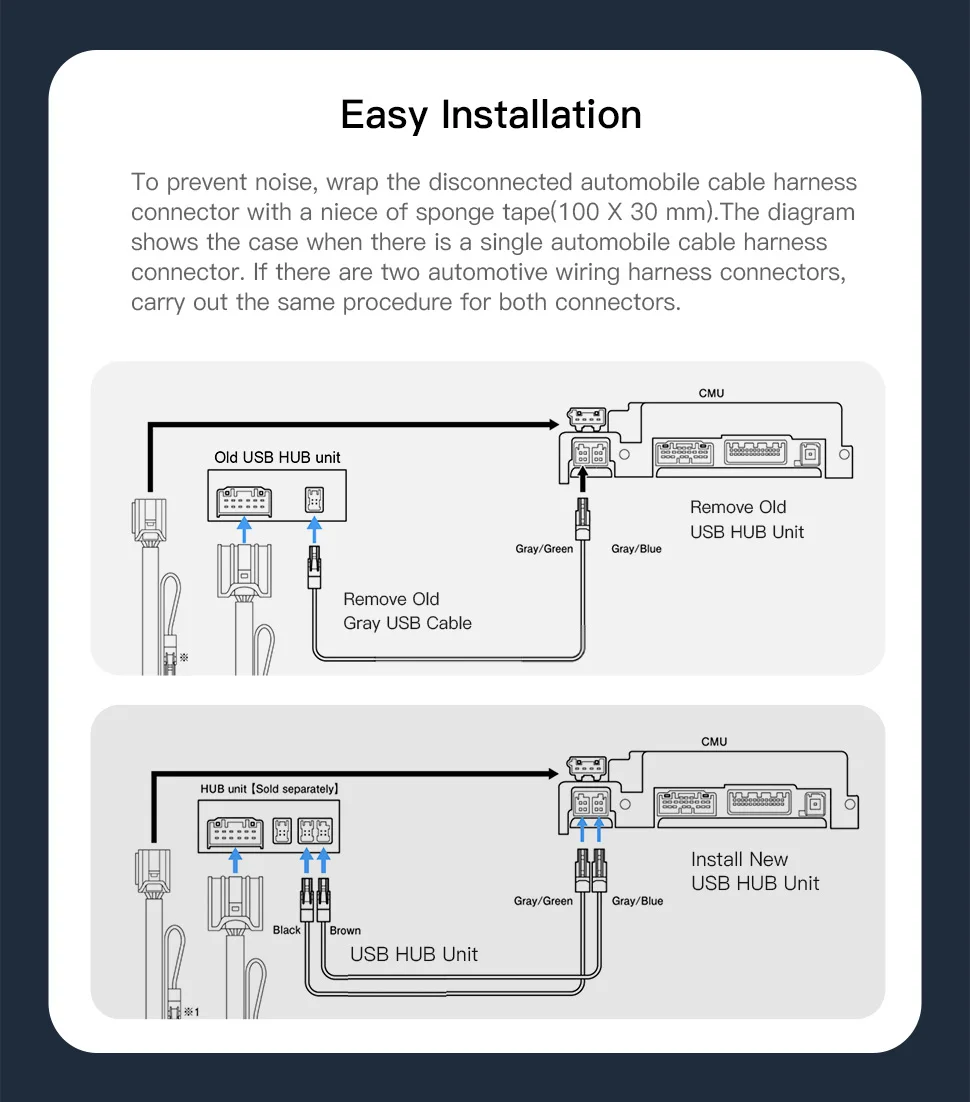
Before you start to install the USB hub, please check the car firmware version, if it is lower than 70..., please update the firmware version first, there is a PDF manual in the folder, please read it, you can't abort the operation during the update process!
Note: Wireless Android auto
Hello, for Android Auto, some mobile phone manufacturers may modify the pure Android system when the phone leaves the factory, which will cause problems with the operation of Android Auto.
Unable to activate and use, you can try the following methods to solve it
1. Update the latest Android auto app on the Google Play Store
2. Clean up the cache of Google services, switch the box to wired mode, use a high-quality and data transmission cable to connect to the wired version of Android Auto (after successful connection, switch to wireless mode for connection)
If it is a TYPE-C interface, please connect to type-c.
If necessary, please open the USB debugging function of your phone to test the connection.
If wireless Android Auto still fails, you can try the following methods.
Once your phone is connected to Android Auto wirelessly, you can try selecting Android Auto again.
CarPlay-AndroidAuto Installation guide
https://drive.google.com/drive/folders/1py59HsES0DGyTd-4iIwjt1TUJh_zimZR?usp=sharing
Firmware MCU upgrade file
https://drive.google.com/drive/folders/1FtKtz4HU0V2sL0DUYUxp8Hui7jIf4iWf?usp=sharing
https://drive.google.com/drive/folders/11u5OqqKLLiFBqOqz1wisAoTtZoaUqHBu?usp=drive_link